JNA Mobility

5g coverage

Struggling With Bad Signal

Struggling With Bad Signal? Here’s What’s Really Going On

Few things are as frustrating as a dropped call during an important conversation or painfully slow mobile data when you urgently need information. You might ask yourself:


Is it my phone? The provider? My location?

The truth is, coverage issues can stem from several factors — and diagnosing the root cause is the first step toward a better connection.

In this guide, we’ll explore the real reasons behind dropped calls and slow data, how to diagnose coverage problems accurately, and practical ways to improve your signal. Whether you’re struggling with buffering videos, lagging apps, or weak reception indoors, this guide will help you regain control of your mobile experience.


Understanding Mobile Coverage: It’s More Than Just Signal Bars

It’s easy to assume that having four or five bars means your connection is strong, but that’s not always the case. Mobile signal bars are only a rough indicator and don’t tell the full story about your network quality.

Signal Strength vs. Signal Quality

  • Signal Strength measures how strong the connection is between your device and the nearest cell tower.
  • Signal Quality measures how clean and interference-free that signal is.

You can have high signal strength but still suffer from poor signal quality — which leads to dropped calls, distorted audio, and sluggish data speeds. Both need to be good for reliable performance.


Common Causes of Dropped Calls and Slow Data

Several factors can affect your mobile connection. Some are environmental, while others are related to your device or network provider.

1. Physical Obstructions

Objects like buildings, trees, mountains, and even thick concrete walls inside your home can weaken or block signals. Urban areas often face signal reflection (where signals bounce off structures), while rural areas can have large coverage gaps due to fewer towers.

2. Distance from the Nearest Cell Tower

The farther you are from a cell tower, the weaker your connection will be. This is a common issue in suburban and rural communities where tower density is lower.

3. Network Congestion

During peak hours or crowded events — concerts, sports games, or rush-hour commutes — thousands of users may be connected to the same tower, leading to network congestion. This overloads the system and slows down data speeds for everyone in the area.

4. Interference from Electronic Devices

Other electronics, such as Wi-Fi routers, baby monitors, microwaves, and cordless phones, can interfere with your mobile signal, especially indoors.

📱 Learn more about what factors affect network coverage and how your environment can influence your mobile performance.


How to Diagnose Your Mobile Coverage Problems

Before assuming it’s your provider’s fault, take time to troubleshoot the issue. You can often identify whether it’s caused by your location, device, or network.

1. Use Network Coverage Maps

A reliable coverage map shows whether your provider offers strong service in your area.
These maps display signal strength, data coverage, and 5G availability based on location.

📍 Here’s how to check and compare mobile network coverage maps to see if your carrier performs well in your area.

If your map shows strong coverage but your phone doesn’t, the issue may be your device or building materials blocking the signal.

2. Test in Different Locations

Move around your home, yard, or neighborhood. If the signal improves when you step outside or move closer to a window, indoor obstructions are likely the cause. Try rearranging your Wi-Fi router or using Wi-Fi calling indoors to improve reliability.

3. Check Your Device and SIM Card

Sometimes the problem isn’t your provider — it’s your phone.

  • Test your SIM card in another phone.
  • Check for system or carrier updates.
  • Replace an old or damaged SIM card.

Old software or hardware can cause compatibility issues with newer network technologies like 5G or VoLTE (Voice over LTE).


Quick Fixes to Boost Your Mobile Signal

1. Toggle Airplane Mode

Turn Airplane Mode on for about 10 seconds, then off again. This forces your device to reconnect to the nearest and strongest tower — often resolving temporary drops.

2. Restart Your Phone

It sounds simple, but restarting your phone clears temporary cache and reconnects your device to the network, solving many short-term issues.

3. Update Carrier Settings

Mobile carriers regularly push updates to improve connectivity and optimize 5G performance.
To check for updates:

  • iPhone: Settings → General → About (wait for carrier update prompt)
  • Android: Settings → About Phone → System Updates

Applying these updates can instantly improve performance.


Advanced Solutions for Persistent Coverage Issues

If you’ve tried all the basic fixes and still experience issues, here are long-term solutions to consider.

Install a Signal Booster

A signal booster (or repeater) captures the outdoor signal and amplifies it inside your home.
It’s ideal for areas with low reception due to distance or building materials. Make sure to buy one approved by your carrier for optimal results.

Use Wi-Fi Calling

If your cellular network is weak but you have strong Wi-Fi, enable Wi-Fi calling in your settings. This lets you make and receive calls over your internet connection instead of the cell network.

Consider Switching Carriers

Sometimes, the simplest fix is switching to a provider with better coverage in your area. Check reviews, coverage maps, and user feedback before making the change.

You can also explore nationwide 5G plans that adapt to your data needs.

📶 View Plans to see which mobile service best fits your lifestyle — whether you prefer flexible “By the Gig” options or unlimited data.


Keep Connected With Nationwide 5G Coverage

Today’s 5G networks offer faster speeds, lower latency, and improved reliability — but coverage still varies by location. Checking availability before you move or switch providers ensures you get the best possible experience.

If you stream often, work remotely, or travel frequently, choosing a plan that supports 5G coverage and strong roaming performance can make a huge difference in your daily connectivity.


Why Diagnosing Coverage Matters

Understanding the real cause of your coverage problems helps you choose the right fix — saving you time, money, and frustration.

  • If it’s your device, updates or repairs may solve it.
  • If it’s your location, boosters or Wi-Fi calling can help.
  • If it’s your carrier, switching to a better provider is worth considering.

By taking control of your connectivity, you can ensure fewer dropped calls, faster data, and a smoother mobile experience.


Conclusion: Take Charge of Your Mobile Connection

Dropped calls and sluggish data aren’t just inconveniences — they can interrupt business calls, affect online learning, or cause unnecessary stress. But most coverage problems are solvable once you know where to look.

Start by checking your coverage map, testing your signal in different areas, and keeping your phone updated. For persistent issues, explore boosters, Wi-Fi calling, or switching to a more reliable carrier.

Remember — a better connection starts with understanding your network.

Struggling With Bad Signal? Here’s What’s Really Going On Read More »
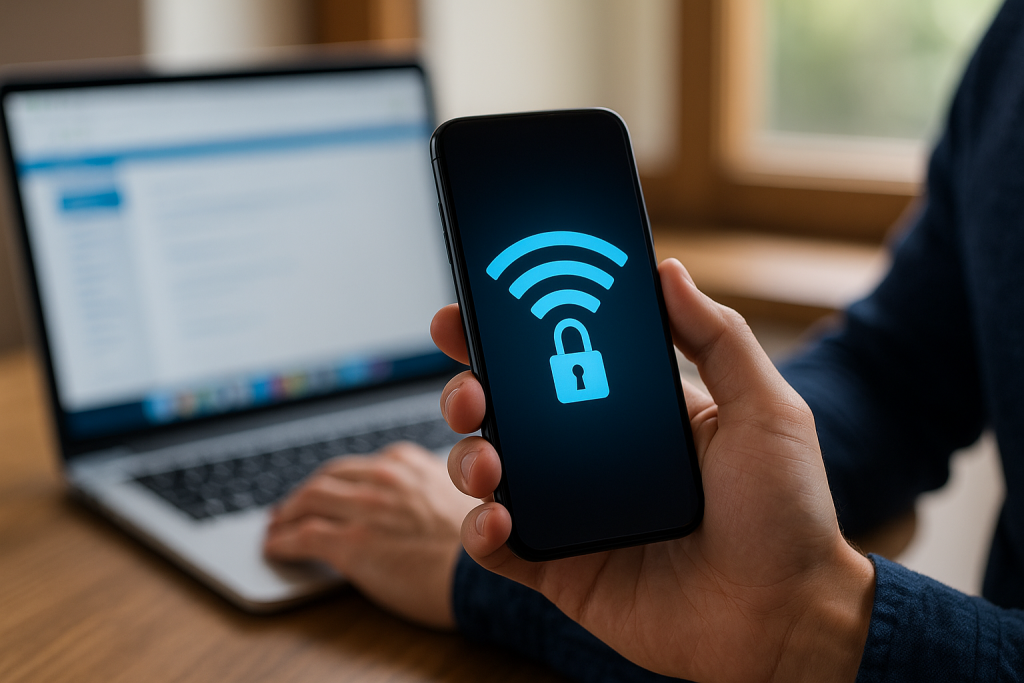
How to Use Your Phone as a Secure Hotspot

How to Use Your Phone as a Secure Hotspot

Imagine you’re traveling or working remotely, and there’s no reliable Wi-Fi network available. Your phone’s hotspot can save the day — allowing you to connect your laptop or tablet to the internet through your mobile data.

But before you turn it on, it’s important to understand one thing: not all hotspots are secure. Without proper setup, you could be sharing more than just your internet connection — you could be exposing your personal information.

This guide will walk you through how to use your phone as a secure hotspot, protect your data, and make the most of your mobile connection safely.

What Is a Mobile Hotspot?

A mobile hotspot allows your smartphone to share its mobile data connection with other devices, like laptops, tablets, or other phones. Essentially, your phone acts as a small, portable Wi-Fi router.

When enabled, other devices can connect to it just like they would connect to any other Wi-Fi network — by selecting the hotspot name (SSID) and entering a password.

There are three main types of mobile hotspots:

  • Wi-Fi tethering: The most common type; your phone broadcasts a Wi-Fi signal that nearby devices can join.
  • USB tethering: Connects your phone directly to a laptop with a cable — faster and more secure.
  • Bluetooth tethering: Uses Bluetooth for a slower but energy-efficient connection.

Each option allows you to share your mobile data, but Wi-Fi tethering is the most widely used — and the one that requires the most attention to security.

Why Security Matters When Using a Hotspot

When you enable your phone’s hotspot, you’re effectively opening a small gateway into your device. If it’s not properly secured, hackers or unauthorized users can connect to it — potentially stealing your data or consuming your mobile data allowance.

Some of the most common risks include:

  • Unauthorized access: If your hotspot isn’t password-protected, anyone nearby can connect.
  • Data theft: Attackers on the same network can monitor traffic, intercepting sensitive data.
  • Malware attacks: Devices connected to your hotspot could transmit malware or compromise your phone.

That’s why securing your hotspot isn’t optional — it’s essential.

How to Set Up a Secure Hotspot on Your Phone

Creating a secure hotspot is quick and easy, but you’ll want to double-check your settings before sharing your connection.

Setting Up on Android

  1. Open Settings → Network & Internet → Hotspot & Tethering.
  2. Tap Wi-Fi Hotspot and toggle it on.
  3. Set a network name (SSID) that’s not personally identifiable.
  4. Choose WPA2 or WPA3 encryption — never select “None.”
  5. Create a strong password with at least 12 characters, combining letters, numbers, and symbols.
  6. Turn on Auto Turn-Off Hotspot (if available) when no devices are connected.

Setting Up on iPhone

  1. Go to Settings → Cellular → Personal Hotspot.
  2. Toggle Allow Others to Join to ON.
  3. Ensure Wi-Fi Password is set and strong.
  4. Don’t share your hotspot via AirDrop or unsecured QR codes.
  5. Disable the hotspot when not in use.

Best Practices for Hotspot Security

Even with encryption and passwords, there are extra steps you can take to ensure complete protection.

Turn Off Hotspot When Not in Use

Leaving your hotspot on all the time invites unnecessary risk. Always disable it when you’re done.

Change Passwords Regularly

Rotate your hotspot password every few months, especially if you’ve shared it with others.

Use a VPN for Added Security

A VPN (Virtual Private Network) encrypts your data, protecting your browsing activity from snooping — even when you’re using your own hotspot.

Limit Connected Devices

Only allow devices you trust to connect. Some phones let you specify a maximum number of connections or whitelist devices by MAC address.

Monitor Data Usage

Check your mobile data regularly to ensure no one else is consuming your plan. Unusual spikes may indicate unauthorized access.

Hotspot Alternatives and When to Use Them

While your phone’s hotspot is convenient, it’s not always the best solution for heavy or long-term use. Here are some alternatives:

  • Portable Wi-Fi routers: These devices have dedicated SIM cards and stronger antennas, ideal for travelers or small teams.
  • USB tethering: This provides faster and more stable connections for single-device use while reducing wireless risks.
  • Public Wi-Fi (with caution): Only use it when absolutely necessary and always pair it with a VPN.

Whenever possible, using your own mobile data is safer than connecting to a public or shared network. Mobile data connections are encrypted by your carrier and far less vulnerable to interception.

Frequently Asked Questions

Can anyone connect to my hotspot without permission?
No, not if you’ve set a strong password and enabled WPA2 or WPA3 encryption. Always monitor connected devices.

Does using a hotspot drain my battery?
Yes, hotspots consume significant power. Keep your phone plugged in when sharing data for extended periods.

Is it safe to use my phone as a hotspot for work?
Yes, as long as your connection is encrypted, password-protected, and preferably paired with a VPN.

How much data does a hotspot use?
That depends on your activity. Streaming, video calls, and large file downloads can quickly consume mobile data, so track usage closely.

Conclusion

Using your phone as a hotspot is one of the easiest ways to stay connected wherever you go. However, it’s also a responsibility — one that requires awareness and proper security settings.

By encrypting your hotspot, setting strong passwords, and using mobile data responsibly, you can stay connected without compromising your privacy.

For consistent, safe, and affordable connectivity, consider a reliable prepaid mobile data plan. With flexible options and no long-term contracts, prepaid services give you control, convenience, and peace of mind while keeping your devices secure.

Your Wireless. Your Plans.

Make the most of your mobile service, no matter where you are.

How to Use Your Phone as a Secure Hotspot Read More »

nationwide 5g coverage

Top Providers Offering Nationwide 5G Coverage

The rollout of 5G technology is revolutionizing how we connect to the internet, promising faster speeds, lower latency, and improved reliability. As this next-generation network expands, it’s crucial to know which providers offer the best nationwide 5G coverage. Whether you’re streaming high-definition videos, gaming online, or using IoT devices, having access to robust 5G service can significantly enhance your experience. Here’s a look at the top providers offering nationwide 5G coverage and what sets them apart.

Understanding 5G Technology

5G, or fifth-generation wireless technology, represents a major upgrade from the previous 4G LTE networks. It offers speeds up to 100 times faster than 4G, with significantly lower latency. This means quicker downloads, smoother streaming, and more responsive online gaming. Additionally, 5G supports more connected devices simultaneously, which is essential as the number of IoT devices continues to grow.

Why Nationwide Coverage Matters

Nationwide 5G coverage ensures that you can enjoy high-speed internet and reliable connectivity no matter where you are in the country. Whether you’re in a bustling city, a suburban neighborhood, or a rural area, having access to 5G can greatly enhance your mobile experience.

Top Providers Offering Nationwide 5G Coverage

1. Verizon

Verizon has been a front-runner in the 5G race, offering extensive nationwide coverage. Their 5G Ultra Wideband network promises incredible speeds and performance, especially in densely populated urban areas.

  • Strengths: Fast speeds, low latency, extensive urban coverage.
  • Plans: Verizon offers a variety of plans to suit different needs, from basic to unlimited data options. For more details, you can check out their network coverage.

2. AT&T

AT&T is another major player in the 5G space, providing robust nationwide coverage. They offer two types of 5G: 5G+ (mmWave) for ultra-fast speeds in select high-traffic areas and 5G (sub-6 GHz) for broader coverage.

  • Strengths: Wide coverage, reliable performance, various 5G plan options.
  • Plans: AT&T’s plans are designed to cater to both individual and business needs, offering flexibility and affordability.

3. T-Mobile

T-Mobile’s 5G network is one of the largest in the U.S., covering millions of people across the nation. Known for their aggressive expansion and competitive pricing, T-Mobile is a strong contender for 5G coverage.

  • Strengths: Extensive coverage, competitive pricing, reliable performance.
  • Plans: T-Mobile offers various plans, including affordable options for individuals and families. Explore their plan offerings for more information.

4. Sprint (Now Merged with T-Mobile)

Since merging with T-Mobile, Sprint’s 5G network has been integrated into T-Mobile’s infrastructure, significantly expanding its coverage and performance.

  • Strengths: Expanded coverage through T-Mobile’s network, improved service quality.
  • Plans: Customers can benefit from T-Mobile’s diverse plan options post-merger.

What to Consider When Choosing a 5G Provider

Coverage Area

Ensure the provider offers strong 5G coverage in your area. Urban areas typically have better coverage, but many providers are expanding into suburban and rural regions.

Speed and Performance

Look for providers that offer high speeds and low latency, especially if you use data-intensive applications like streaming, gaming, or video conferencing.

Plan Flexibility

Choose a provider that offers a variety of plans to suit your needs, whether you need unlimited data, family plans, or business solutions.

Cost

Compare the pricing of different providers to find a plan that fits your budget. Don’t forget to consider additional costs like device charges or hidden fees.

Customer Support

Good customer service is essential. Opt for providers with strong customer support and reliable service quality.

Conclusion

As 5G technology continues to evolve, having access to nationwide 5G coverage can significantly enhance your connectivity and online experience. Verizon, AT&T, T-Mobile, and Sprint (via T-Mobile) are leading the way with robust coverage and competitive plans. By considering factors such as coverage area, speed, plan flexibility, cost, and customer support, you can choose the best 5G provider to meet your needs.

For a deeper dive into network coverage and plan options, visit JNA Mobility’s network page and plan offerings.

Top Providers Offering Nationwide 5G Coverage Read More »