
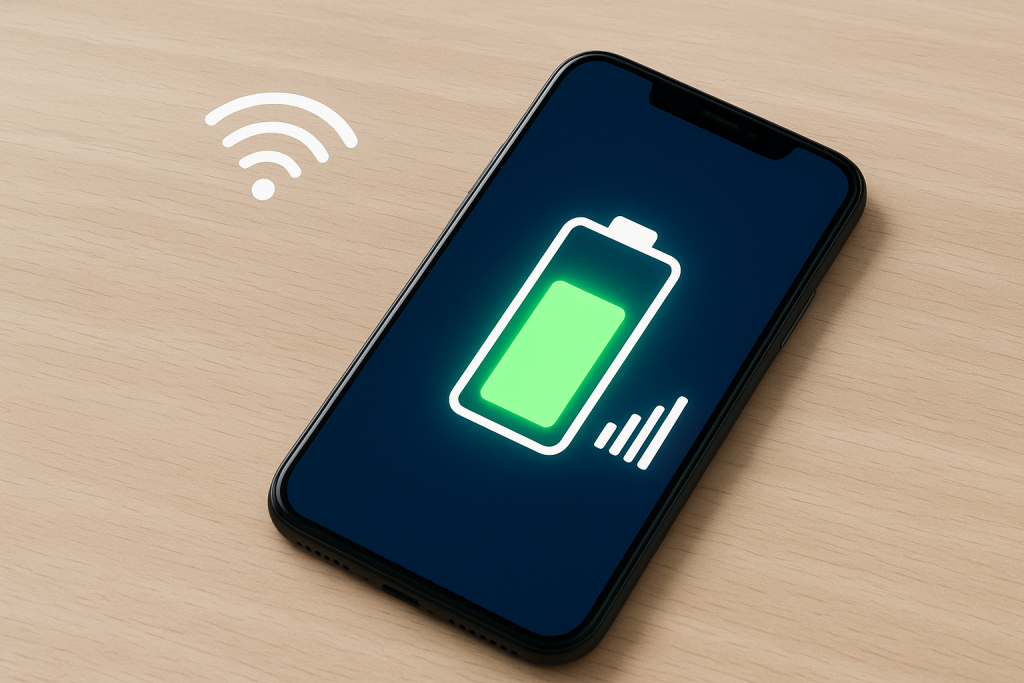
Maximize Battery Life Without Losing Connectivity
Your smartphone’s battery powers everything—from calls and messages to entertainment and work tasks. But while most people focus on the hardware side (like screen brightness or charging habits), few realize that your mobile plan settings can play a major role in battery performance.
At JNA Mobility, a trusted prepaid and postpaid mobile plan provider, we’ve seen how optimizing your plan and network settings can extend your battery life significantly. Whether you’re streaming, traveling, or just trying to make your phone last the entire day, understanding how your mobile plan interacts with your device is the key to better performance.
Let’s explore how adjusting your mobile plan settings can keep your phone powered longer—without compromising your connectivity or convenience.
Why Mobile Plan Settings Affect Battery Life
Your phone’s connection to the network—whether it’s 5G, 4G LTE, or Wi-Fi—directly impacts battery drain. When your device constantly searches for a stronger signal or maintains high-speed data for tasks you’re not using, it consumes more power.
By fine-tuning how your mobile plan handles data, roaming, and connectivity, you can reduce background activity, minimize signal strain, and help your battery last hours longer each day.
1. Adjust Your Network Mode to Match Your Usage
Many smartphones automatically connect to the fastest available network—often 5G. While that’s great for speed, 5G networks can be power-hungry, especially in areas where coverage fluctuates. When your device frequently switches between 5G and 4G, it burns extra energy.
What You Can Do
- If you’re not downloading large files or streaming video, switch to 4G LTE for standard browsing and messaging.
- On most phones, you can change this under Settings → Mobile Network → Preferred Network Type.
- Use Auto Mode only if you live in a strong 5G area. Otherwise, manually select LTE to stabilize performance and reduce drain.
This small tweak can make a big difference—especially when your battery is struggling near the end of the day.
2. Turn Off Data Roaming When It’s Not Needed
If your mobile plan includes roaming, your phone constantly searches for compatible partner networks when you’re outside your carrier’s normal area. This continuous scanning consumes energy, even if you’re not actively using your phone.
Pro Tip:
- Disable data roaming unless you’re traveling.
- When abroad, consider purchasing a local SIM or an eSIM plan through JNA Mobility for better coverage and less battery stress.
- You’ll not only save battery power but also avoid unnecessary roaming fees.
3. Use Wi-Fi Calling for Efficiency and Clearer Connections
If your plan supports Wi-Fi Calling, enabling it can drastically reduce battery usage in low-signal areas. Phones expend more power trying to maintain a weak signal, but with Wi-Fi calling, your device uses a stable Wi-Fi network instead of the cell tower.
Benefits:
- Reduced battery drain in weak signal zones.
- Clearer voice calls with fewer dropped connections.
- No extra data usage when connected to a Wi-Fi network.
To activate this, go to Settings → Mobile Network → Wi-Fi Calling and toggle it on.
4. Manage Background Data Access for Apps
Apps running quietly in the background can consume both data and battery. Many mobile plans allow you to manage which apps are permitted to use background data.
How to Optimize:
- Head to Settings → Data Usage → App Data Access.
- Turn off background data for non-essential apps such as games, shopping apps, or social media.
- Keep necessary services—like messaging or email—active.
This not only conserves energy but also reduces unnecessary mobile data usage, helping you make the most of your plan.
5. Enable Data Saver Mode
Many smartphones include a built-in Data Saver feature that limits background processes and syncs. Fewer background tasks mean fewer active data connections—resulting in extended battery life.
Advantages:
- Stops automatic loading of heavy media content (videos, high-res images).
- Reduces the frequency of app server checks.
- Works well with unlimited or limited data plans from JNA Mobility.
To enable:
- Android: Settings → Network & Internet → Data Saver.
- iPhone: Settings → Cellular → Cellular Data Options → Low Data Mode.
6. Optimize Your Hotspot Usage
Using your phone as a mobile hotspot is convenient, but it’s one of the fastest ways to drain your battery. When tethering, your device is simultaneously maintaining a data connection and a Wi-Fi signal for connected devices.
Smart Usage Tips:
- Activate hotspot only when needed.
- Limit the number of connected devices.
- Plug your phone in while tethering for long sessions.
- Consider using a dedicated hotspot plan from JNA Mobility for frequent use—this offloads the power burden from your main device.
7. Disable Always-On Location Services
Some mobile plans integrate with location-based tools for emergency alerts or family safety tracking. While these are useful, they continuously use GPS, which can cut your battery life by hours.
Recommendation:
- Change permissions to “While Using the App” instead of “Always.”
- Disable tracking apps or features when not needed.
- Review app permissions under Settings → Privacy → Location Services.
This ensures your location is available when you need it—without draining power all day long.
8. Schedule Automatic Network Switching
Modern devices and advanced mobile plans include smart network switching that intelligently toggles between Wi-Fi and cellular data. While this helps maintain performance, scheduling or manually managing it can save additional battery life.
How to Use It:
- Use Wi-Fi during office hours or while at home.
- Turn on mobile data only when traveling or working outdoors.
- Set automation routines using tools like Android’s Digital Wellbeing or Apple’s Shortcuts to manage connectivity automatically.
This balance helps your device stay efficient without losing essential functionality.
9. Combine Low Power Mode with Mobile Plan Tweaks
When you enable Low Power Mode on your phone, it already limits background processes, screen brightness, and mail fetch rates. Combining this with mobile plan adjustments—like switching from 5G to LTE or disabling background data—can provide even better results.
When to Activate:
- Before long commutes, travel, or events where charging options are limited.
- When your phone dips below 30%.
- During extended calls or video sessions to prevent battery strain.
Together, these settings can easily add two to three extra hours of usable time.
10. Use Plan Features That Prioritize Efficiency
Not all mobile plans are created equal. Some modern plans, like those offered by JNA Mobility, are designed for energy-efficient connectivity by optimizing network switching, Wi-Fi calling, and background data sync.
Look for Plans That Offer:
- Flexible data settings (control your speed or connection type).
- eSIM support for seamless switching between networks.
- Roaming control options built into the plan dashboard.
These features don’t just save data—they help your phone work smarter, not harder.
Bonus Tips for Everyday Battery Care
While mobile plan settings are a big part of energy management, here are a few daily habits that complement them perfectly:
- Keep your screen brightness below 70%.
- Turn off Bluetooth and mobile data when not in use.
- Avoid letting your phone fully discharge—charge between 20–80%.
- Keep your device software updated; new updates often include battery optimizations.
- If your phone battery is old, consider a replacement to restore full performance.
Final Thoughts: Smart Plans, Smarter Power Management
Battery life isn’t just about hardware—it’s also about how your device communicates with networks, apps, and background services.
By understanding and customizing your mobile plan settings, you can take control of your phone’s power consumption. The right adjustments help you stay connected, productive, and stress-free throughout the day.
At JNA Mobility, we don’t just provide affordable and flexible mobile plans—we empower customers to get the most out of their devices. Small tweaks to your network and data preferences can be the difference between reaching for your charger at noon or sailing through an entire day with battery to spare.
Maximize Battery Life Without Losing Connectivity Read More »